How to Download Instagram Videos Without Watermark — ReelsVideo Guide
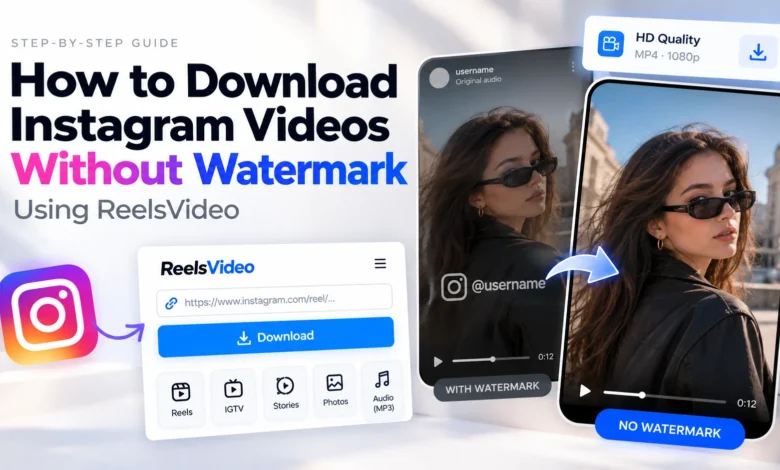
Instagram’s own download feature adds a watermark — your username stamped on the video, bouncing around the frame. That only works for your own Reels anyway; for any video posted by someone else, there’s no in-app download option at all. The clean solution is a tool that fetches the original video
file from Instagram’s servers before any watermark gets applied. This guide covers exactly how that works using ReelsVideo Instagram downloader — step by step for every device — plus the technical reason why the result is always clean.
Why Some Methods Produce Watermarks and Others Don’t
|
Method |
Does it produce a watermark-free result? |
| Instagram’s native Reels download | No — stamps your username on every download by design |
| Screen recording | No watermark from Instagram, but UI elements are captured in the frame |
| Third-party apps that re-encode | Sometimes not — some add their own logo during processing |
| ReelsVideo (direct file retrieval) | Yes — fetches the stored file before any watermark is applied |
The key distinction: watermarks are applied at export time, not stored in the original file. Instagram’s servers hold clean MP4 files. The watermark only appears when Instagram’s own export pipeline generates a shareable version. A tool that retrieves the stored file directly never goes through
that pipeline — so there’s nothing to remove, because nothing was added.
How to Download Without Watermark Using ReelsVideo
Open reelsvideo.io in any browser. Free, no sign-up required.
- Open Instagram and find the video or Reel you want to save.
- Tap the three dots (••• on iPhone, ⋮ on Android) on the post.
- Select Copy link.
- Go to reelsvideo.io in your browser.
- Paste the link into the input field and tap Download.
- The original MP4 saves to your device — clean, no watermark, in HD quality.
The process takes under 30 seconds. No account needed at any step.
On Android
Chrome downloads the file directly to your Downloads folder and it appears in Gallery automatically. The file is the original stored MP4 — identical to what Instagram serves to every viewer of that post, with nothing added by ReelsVideo.
Security note: ReelsVideo only needs the post URL — never your Instagram credentials. If any site shows you an Instagram login form before allowing a download, close it immediately.
On iPhone
Safari sometimes plays the video in the browser instead of saving it. The fix:
- Copy the Instagram link.
- Open Safari and go to reelsvideo.io.
- Paste and tap Download.
- If the video plays in Safari instead of saving — tap and hold the video, then choose Download Linked File.
- The file appears in Files → Downloads.
- To move it to your Photos library: tap the file → Share → Save Video.
Faster alternative: Chrome on iPhone usually downloads directly without the tap-and-hold step.
On PC or Mac
Open instagram.com in your browser, find the post, click the three dots → Copy link. Open reelsvideo.io in a new tab, paste and click Download. If the video opens in the browser tab instead of downloading, right-click → Save video as. The file saves to your Downloads folder.
How to Get a Watermark-Free Copy of Your Own Videos
Instagram’s native download for your own Reels always adds your username as a watermark — that’s the intended behaviour for cross-platform sharing. If you want a clean copy of your own video for editing, republishing, or archiving, the same process works: copy the link to your own post, paste it
into reelsvideo.io, and download. You get the original file without any branding applied.
What Quality Does the Downloaded Video Have?
ReelsVideo delivers the file exactly as Instagram stores it — no re-encoding, no additional compression. The quality depends on what the creator originally uploaded: typically HD 720p or Full HD 1080p for Reels and feed videos. Instagram applies its own compression on upload, so what you receive
is the best version the platform stores — with one compression pass rather than two.
Supported Content Types
The same watermark-free download process works for all public Instagram content:
- Feed videos — standard video posts from any public account
- Reels — short-form vertical video, any length
- IGTV — long-form video content
- Stories in Highlights — Stories saved to a public profile
- Photos and carousels — saved as JPG
- Audio extraction — MP3 from any video or Reel
Private account content is not supported — the files aren’t publicly served so no external tool can access them.
Frequently Asked Questions
Does ReelsVideo remove an existing watermark from a video?
No — and that’s not what’s happening. The original file on Instagram’s servers never had a watermark on it to begin with. ReelsVideo fetches that clean original directly. It’s prevention, not removal.
Will the creator know I downloaded their video?
No. Instagram doesn’t notify creators about downloads made through external tools.
Is there a download limit?
No limits. Download as many watermark-free videos as you need — completely free, no account required.
Does it work for Stories?
Stories that have been saved to a Highlights reel on a public profile work with the standard process. Live or expired Stories (not saved to Highlights) are no longer on Instagram’s servers once they expire, so they can’t be retrieved.
The Original File Is Always Clean
Instagram stores video files without watermarks. The watermark only appears when their export pipeline generates a shareable version — it’s never part of the stored file. ReelsVideo Instagram downloader goes straight to that stored file, bypassing the export pipeline entirely. Copy the link, paste
it into reelsvideo.io, download — the clean original MP4 is on your device in under 30 seconds, on any device, for free.