How to Launch Custom Tote Bags Without Advanced Design Skills
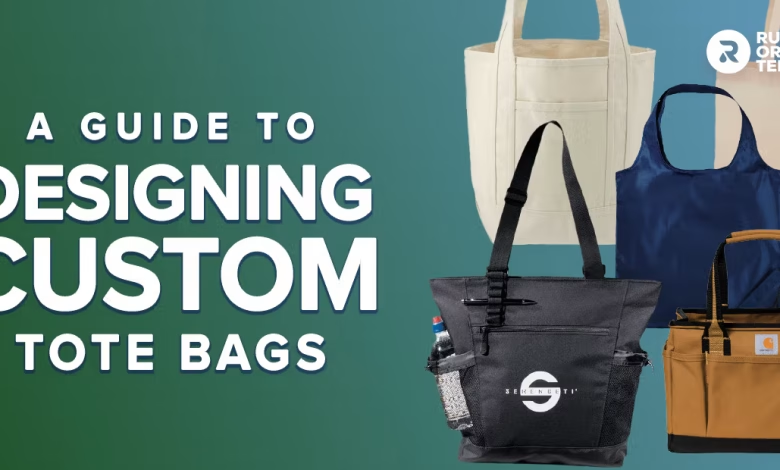
Introduction
Custom tote bags have become a common merchandise option for influencers launching limited drops, event giveaways, or branded collaborations. They are functional, visible in daily use, and adaptable to different aesthetics, from minimalist logos to bold graphic prints.
Modern tote bag design platforms integrate layout tools, typography controls, image editing, and export settings into a single workflow. This reduces the need for advanced software while still allowing control over sizing, alignment, and production details.
For creators without formal design training, structured templates simplify setup and reduce formatting errors. Many influencers start with the Adobe Express tote bag maker because it provides preset canvas sizes and guided layout tools aligned with common tote bag print areas.
The steps below focus on layout clarity, file preparation, and production coordination to support efficient merchandise creation.
Step-by-Step Guide for Using Custom Tote Bags Design Tool
Step 1: Define Tote Size and Print Area
Goal
Establish accurate dimensions before adding artwork.
How to do it
- Confirm tote bag dimensions and print area size.
- Decide between front-only or double-sided printing.
- Review maximum print width and height.
- Identify seam and handle placement zones.
- Lock canvas dimensions before designing.
What to watch for
- Placing artwork over seam lines.
- Designing outside printable boundaries.
- Ignoring handle placement restrictions.
Tool notes
Adobe Express includes preset tote bag layouts that align canvas dimensions with typical production standards.
Step 2: Choose a Template and Set Brand Direction
Goal
Create a cohesive visual identity quickly.
How to do it
- Select a template aligned with brand aesthetics.
- Replace placeholder text with brand messaging.
- Apply consistent brand colors.
- Use alignment guides to center elements.
- Maintain balanced spacing.
What to watch for
- Overcrowded layouts.
- Inconsistent typography.
- Visual imbalance between text and graphics.
Step 3: Build Artwork Using Vector and High-Resolution Assets
Goal
Ensure scalability and clarity in print.
How to do it
- Use vector graphics for logos and icons.
- Upload images at 300 DPI at final size.
- Avoid enlarging low-resolution files.
- Group related layers for easy editing.
- Keep important elements within safe margins.
What to watch for
- Pixelation in enlarged graphics.
- Thin lines that may fade in fabric printing.
- Mixed resolution assets affecting sharpness.
Tool notes
Vector editing tools such as Inkscape can help refine scalable artwork before importing into a tote bag design platform.
Step 4: Adjust Color for Fabric Printing
Goal
Prepare colors for textile production.
How to do it
- Confirm whether RGB or CMYK is required.
- Avoid overly subtle gradients.
- Increase contrast between text and background.
- Test light and dark variations.
- Review mockup previews if available.
What to watch for
- Color shifts between screen and print.
- Ink absorption dulling bright tones.
- Low-contrast typography.
Step 5: Preview Layout at Full Scale
Goal
Validate balance and readability.
How to do it
- Zoom to 100% view.
- Inspect edge spacing carefully.
- Confirm symmetry.
- Evaluate legibility from a distance.
- Compare front and back designs if applicable.
What to watch for
- Cropped edges.
- Off-center alignment.
- Uneven padding.
Step 6: Export a Print-Ready File
Goal
Generate a production-ready design file.
How to do it
- Export at 300 DPI.
- Confirm final dimensions.
- Remove unused layers.
- Convert fonts to outlines if required.
- Save both editable and final versions.
What to watch for
- Incorrect scaling.
- Flattened editable layers.
- Missing bleed or margin allowances.
Tool notes
Adobe Express supports high-resolution export options suited for merchandise printing workflows.
Step 7: Coordinate Fulfillment and Shipping
Goal
Manage distribution efficiently once production begins.
How to do it
- Confirm quantity and material selection.
- Review digital proofs carefully.
- Approve final artwork version.
- Track production timelines.
- Organize shipment tracking information.
What to watch for
- Missing proof corrections.
- Overlooking delivery timelines.
- Submitting outdated file versions.
Tool notes
Shipping platforms such as ShipBob can help manage fulfillment and order tracking once tote bags are produced.
Common Workflow Variations
Logo-Centric Minimalist Tote
Use vector logos and limited color palettes. Maintain generous spacing around the logo for a clean look.
Bold Graphic Drop
Focus on a central illustration with high contrast. Ensure artwork remains sharp at large print sizes.
Event Giveaway Tote
Include event name and date in clear typography. Keep messaging concise and legible from a distance.
Collaborative Brand Tote
Combine multiple brand marks while maintaining consistent alignment and spacing.
Before You Start Checklist
- Tote bag size confirmed
- Printable area dimensions verified
- Brand colors selected
- High-resolution images prepared
- Fonts licensed
- Production timeline planned
- Quantity estimated
- Fabric type reviewed
Pre-Export / Pre-Order Checklist
- 300 DPI resolution verified
- Safe margins respected
- Spelling reviewed
- Contrast checked
- File dimensions confirmed
- Fonts outlined if required
- Unused layers removed
- Final preview inspected
Common Issues and Fixes
Blurry printed graphics
Ensure images are 300 DPI at final size and avoid scaling small files upward.
Text too close to edges
Increase safe margins and reposition elements inward.
Muted colors on fabric
Adjust contrast and avoid extremely subtle color differences.
Design appears off-center
Use alignment guides and preview at full scale.
File rejected by printer
Recheck resolution, format, and dimension settings before resubmission.
How To Use Custom Tote Bags Design Tool: FAQs
Is it better to start with a template or a blank canvas?
Templates simplify sizing and layout setup. Blank canvases allow more flexibility but require careful measurement configuration.
What resolution should I use for tote bag printing?
300 DPI at final size is typically required for textile printing.
Should I design in RGB or CMYK?
Confirm printer requirements before exporting to ensure color accuracy.
How do I maintain brand consistency across merchandise drops?
Use consistent typography, spacing, and color selections, and archive editable templates for reuse.